Watch walkthrough video by clicking on this link, or proceed to read the text below:
Major Update 01-24-24:
I can now embed Plex-friendly subtitles without issue. All subs ending in (SRT_External) or similar are good to go!

Avoid subs ending with (VOBSUB), (MOV_TEXT), etc
Subtitles in Plex are a little bit trickier than, say, in Netflix, but not once you know where to go. As mentioned above, the subtitles I embed often cause streaming issues due to a quirk of Plex’s engine.
Instead, it is better to disable the embedded subtitles, and download a new one via the movie interface, using the below steps:
- While playing a video, click the “Playback Settings” button
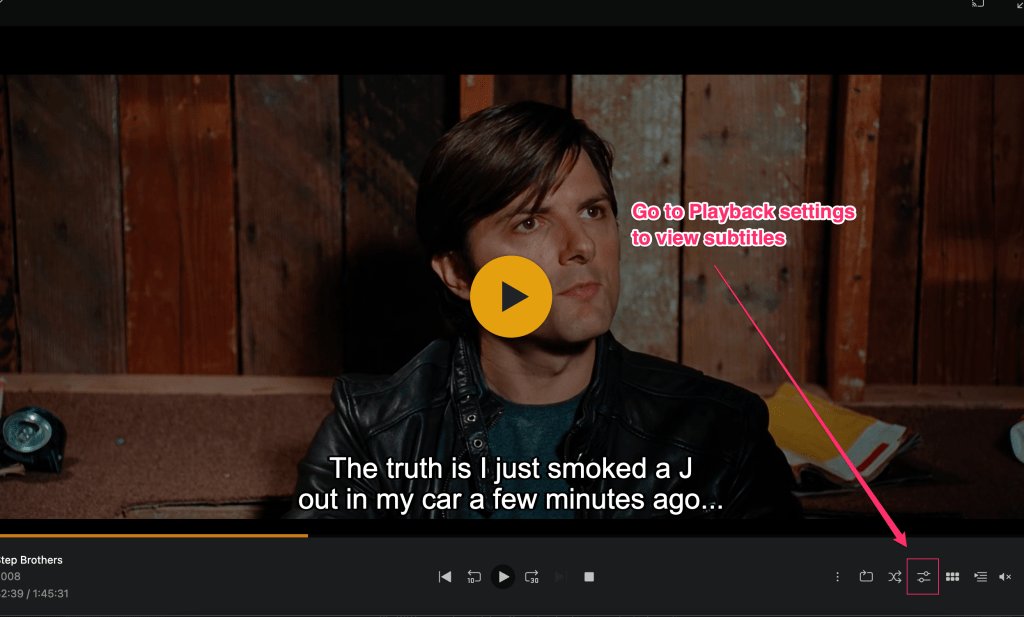
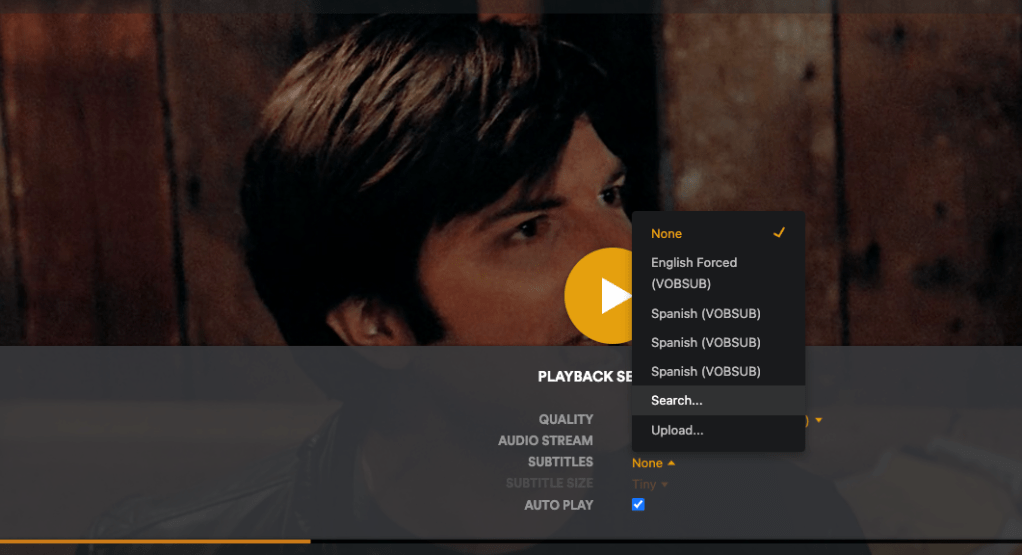
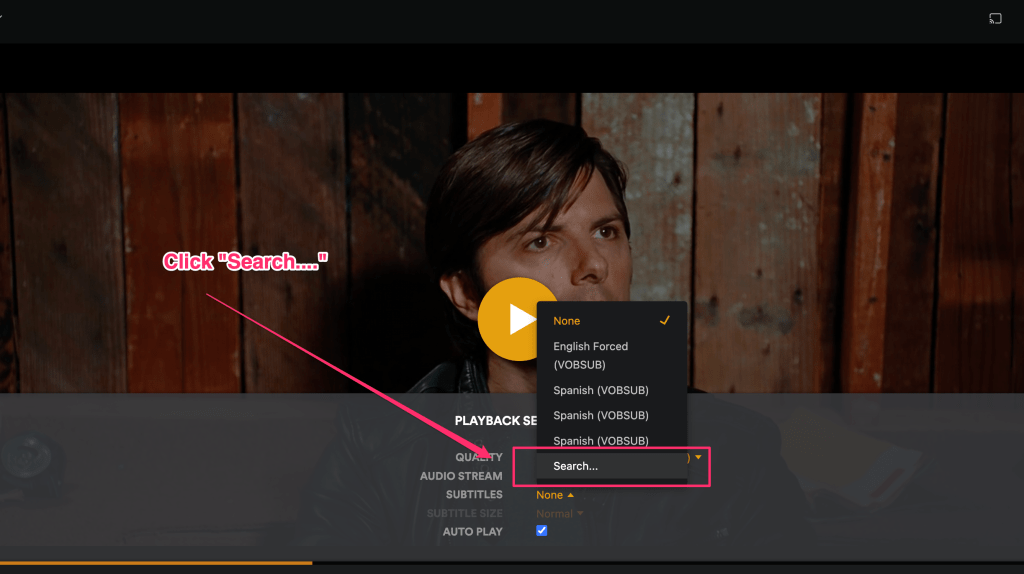
Rather than using the subs I’ve built in, use the Search and Download feature. Plex will automatically enter the search for you.
The first option listed is usually the best, so download it and subs will be enabled! The process only takes a few seconds.


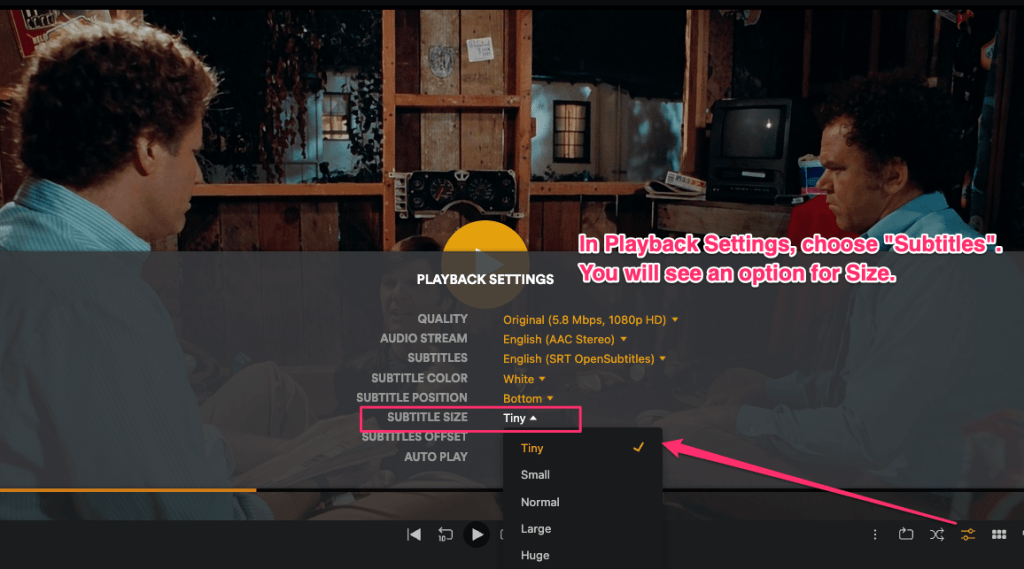
You can change the size of the subtitles to suit your preference by clicking Size in the subtitles menu under Playback Settings.
Video Walkthroughs
Walkthrough with large images
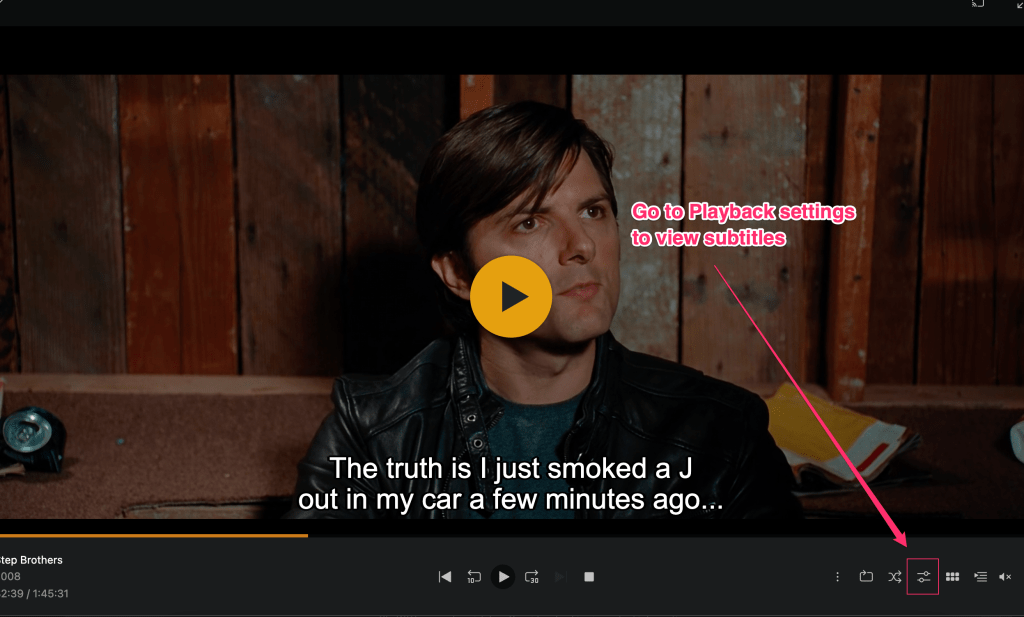
While playing a video, you can see an icon which looks like a stereo slider which holds Playback Settings. Click this to view the Subtitles menu.
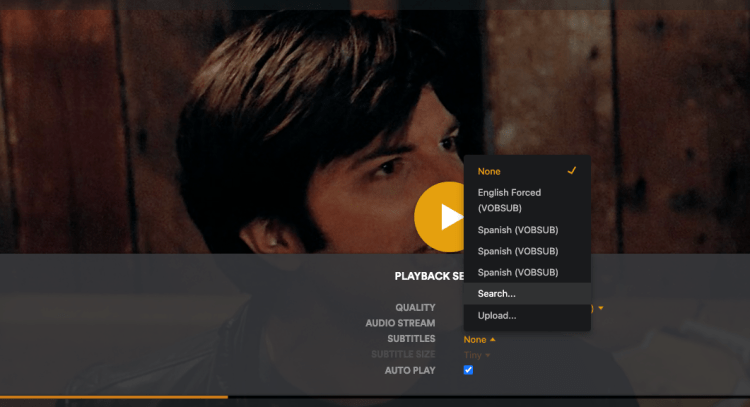
In Playback Settings you will see Subtitle options. Instead of using built in subs, click Search
A search box will appear, automatically populated by Plex, with options specific to your video.
Just click Download on one of the subtitles files (usually the very first one is the best).
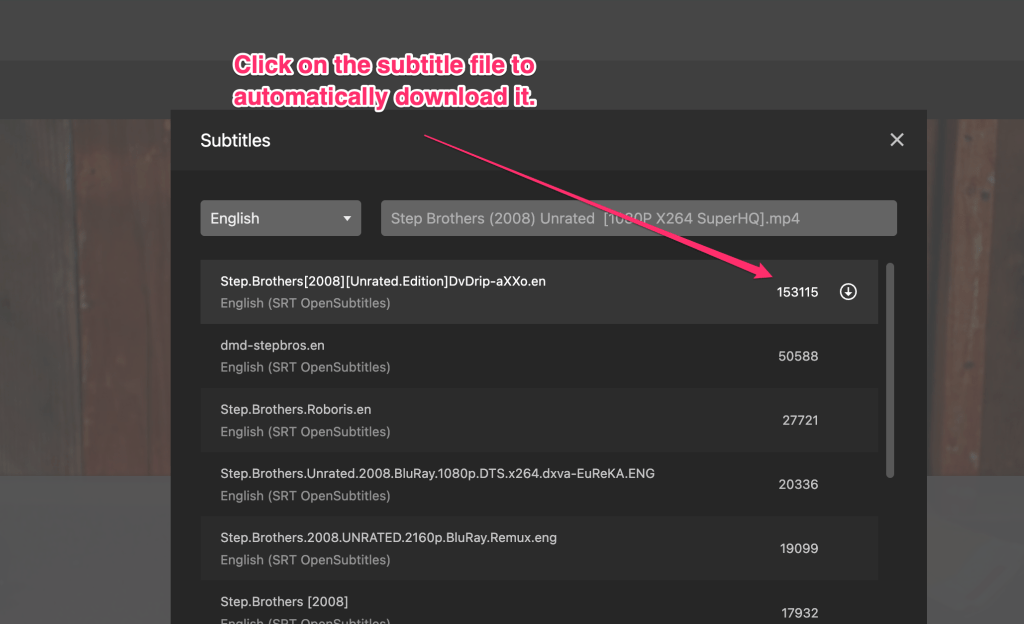
Once downloaded, Subtitles will automatically be enabled. You can adjust the size of the subtitles in the Subtitles sub-menu of Playback Settings

Done! Click the Playback Settings button again to dismiss the menu, and enjoy your video!
 Webhead Media